Save
The Save dialog is used for perfoming a save of a Take, SSD Take, or SLOW File.
To perform a save, click the Save... button in a Take / SSD Take / SLOW File Info pane, the File Menu, or from an object's context menu in the Navigation Pane.
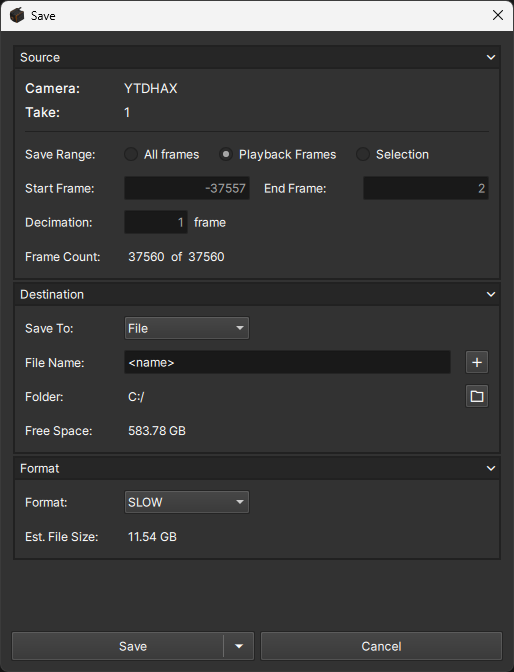
Source
Displays information about the source Take, SSD Take, or SLOW file and allows users to define the frame range to be saved.
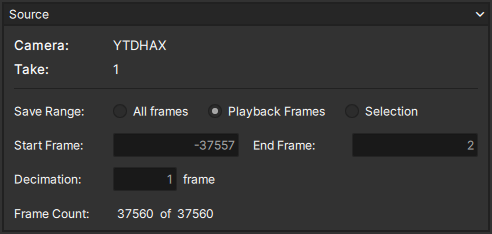
Fields
| Field | Description |
|---|---|
| Save Range | Selects the method of defining the range of frames to save |
| Start Frame | Start frame of the save range when using the Selection option |
| End Frame | End frame of the save range when using the Selection option |
| Decimation | Saves every nth frame when using the Selection option. If the source was previously decimated, the amount of previous decimation is displayed to the right of the field |
| Frame Count | Read-only field that displays the total amount of frames to be saved |
Save Range Options
| Option | Save Range |
|---|---|
| All frames | Saves all frames from the source |
| Playback Frames | Saves frames based on the user-defined playback range of the scrubber bar |
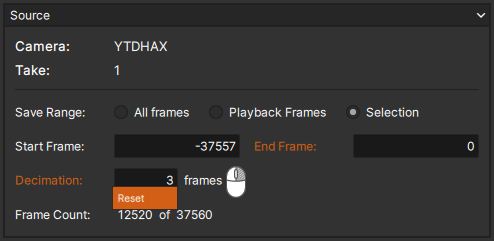
| Selection | Saves a selection of frames defined by the Start / End Frame and Decimation fields |
The Start / End Frame and Decimation fields highlight in orange when modified from the original values of the source.
Values can be quickly reverted by right-clicking the field and selecting Reset.
Destination
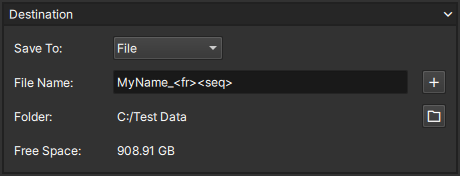
Provides options for file destination and file naming
Fields
| Field | Description |
|---|---|
| Save To | Sets the save destination |
| File Name | Text field to define desired file name, including any optional tags to add information or context. Tags can be inserted by clicking the  button, or by typing them in manually button, or by typing them in manually |
| Folder | Displays the folder path of the file to be saved. To select the desired folder, click the  button button |
| Free Space | Read-only field that displays the available disk space of the save destination |
Save To Options
| Option | Destination |
|---|---|
| File | Local, external, or network drive |
| SSD | Camera's SSD drive |
Tag Options
| Option | Syntax | Description |
|---|---|---|
| Name | <name> | Original name of the SLOW file, Take#, or SSD Take name |
| Timestamp | <time> | Timestamp at the time of save operation |
| Sequence Number | <seq> or <seq:n> | Incrementing sequence number based on an internal counter, can be overidden by users. The sequence number can be zero-padded to a minimum number of digits by adding a colon followed by desired number of digits to the tag |
The following are examples of valid file names that use tags at the beginning, middle, and/or ends of the file name strings:
Filename_<time>_ MoreName_<seq:3>
<time>_Filename _<seq:3>_MoreName
In these examples, the underscore characters are not required but added as delimiters to make the resulting string easier to read.
Results:

Format
Provides options for file format, codec, frame rate, and quality
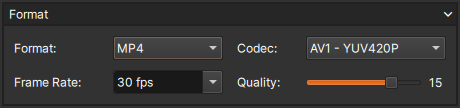
Fields
| Field | Description |
|---|---|
| Format | Selects the desired file format |
| Codec | Provides options for uncompressed or compressed video / image encoding |
| Frame Rate | Sets the playback frame rate for video formats. Common rates can be selected from the dropdown menu, or a custom rate up to 240fps can be entered manualy |
| Quality | Sets the desired video encoding quality for compressed codecs at the cost of file size and/or save time. Adjusting the slider to the right (lower numeric value) results in increased quality |
| Est. File Size | Estimation of the file size in bytes based on the frame range and format options |
The Codec, Frame Rate, and Quality options are only available for some Formats
Format Options
| Format | Description |
|---|---|
| SLOW | Pharsighted's proprietary raw image data and metadata file format |
| AVI | Audio Video Interleave |
| MP4 | MPEG-4 Part 14 |
| TIFF | Tagged Image File Format |
| CSV (Metadata) | Comma-Separated Value file containing frame metadata |
Image adjustments and color adjustments are applied permanently to pixel data when images are saved to file formats other than .SLOW.
CSV Metadata
The CSV format includes the following metadata for each frame:
- Frame #
- Timestamp
- Timecode Lock Indicator
- Event 1 Signal Indicator
- Event 2 Signal Indicator
Saving to CSV (Metadata) is not available for SSD Takes (in camera). Open the SLOW files via a PC to save to CSV files.
Codec Options
| Format | Codec | Description |
|---|---|---|
| AVI | RAW - BGR24 | Raw (uncompressed) image format, BGR color, 24-bit (8-bit x 3 color channels) |
| AVI | RAW - Gray8 | Raw (uncompressed) image format, monochrome, 8-bit |
| MP4 | AV1 - YUV420P | High-compression efficiency image format, YUV (Luma, U, V) color space, chroma subsampling (4:2:0), planar arrangement, 8-bit |
| MP4 | AV1 - YUV420P10 | High-compression efficiency image format, YUV (Luma, U, V) color space, chroma subsampling (4:2:0), planar arrangement, 10-bit |
| MP4 | H.264 - YUV420P | High-compression efficiency image format, YUV (Luma, U, V) color space, chroma subsampling (4:2:0), planar arrangement, 8-bit |
| TIFF | RAW - RGB24 | Raw (uncompressed) image format, RGB color, 24-bit (8-bit x 3 color channels) |
| TIFF | RAW - Gray8 | Raw (uncompressed) image format, monochrome, 8-bit |
| TIFF | RAW - Gray16 | Raw (uncompressed) image format, monochrome, 16-bit |
Frame Rate Options

Save & Repeat
The Save & Repeat function is available to quickly perform multiple saves of the same source. This is useful, for example, when it is desired to save the source to multiple destinations and/or formats.
To do so, click the down arrow within the Save button and select the Save and Repeat option. This will immediately begin the save with the current settings, but will keep the save dialog open so that a subsequent save can be configured and performed.
