Connect Camera
The SLOW software will always perform a UDP broadcast over port 8890 when started on any available network interfaces that are active. The network will assign the camera an IP address if a DHCP server is running, and if not the camera will auto-negotiate a link local address.
If for any reason the software does not detect the camera, the 'Connect Camera' features can be used to attempt to find cameras on the network.
These features can be accessed by clicking on the 'Add' button  found at the top of the Navigation pane
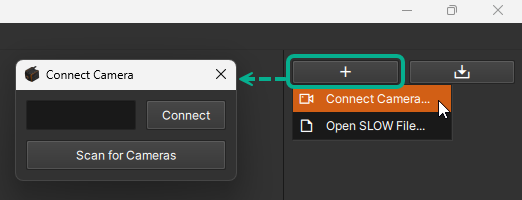
Connect Camera Options
| Menu Option | Description |
|---|---|
| Connect | Attempts to connect to the IP address specified in the adjacent field to the left |
| Scan for Cameras | Manually initiates a UDP broadcast to search for cameras |
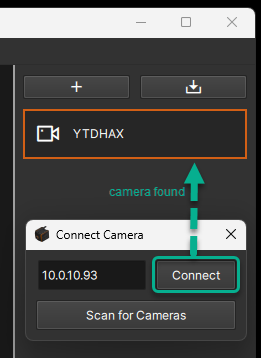
Connect Button
Enter a valid IP address in the text field and click the 'Connect' button
The specified camera should appear in the Navigation Pane
Scan for Cameras Button
Simply click the 'Scan for cameras' button and any cameras now visible on the network should appear in the Navigation Pane
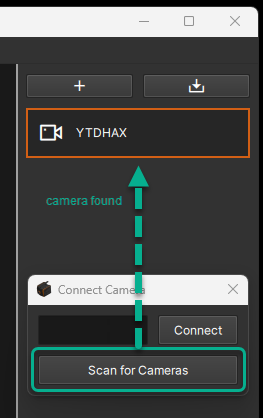
The 'Scan for Cameras' option is useful for situations where the SLOW application is already running before the camera finishes booting.
Port Forwarding
Port forwarding redirects incoming network traffic from a router's public IP address to a specific device on a private network, creating a direct path for external connections to reach the camera.
When connecting to a network that requires ports to be forwarded, two ports are used for E9 cameras and the SLOW software:
| Port # | Protocol | Description |
|---|---|---|
| 8890 | UDP | Camera Discovery |
| 80 | TCP | Camera Control Commands |
Most networks do not require port forwarding and this step of the configuration is typically not necessary.