Playback
The Playback view is displayed when either a Take, SSD Take, or SLOW File object is selected. In addition to the Image Pane, this view is divided into two overall regions of controls.
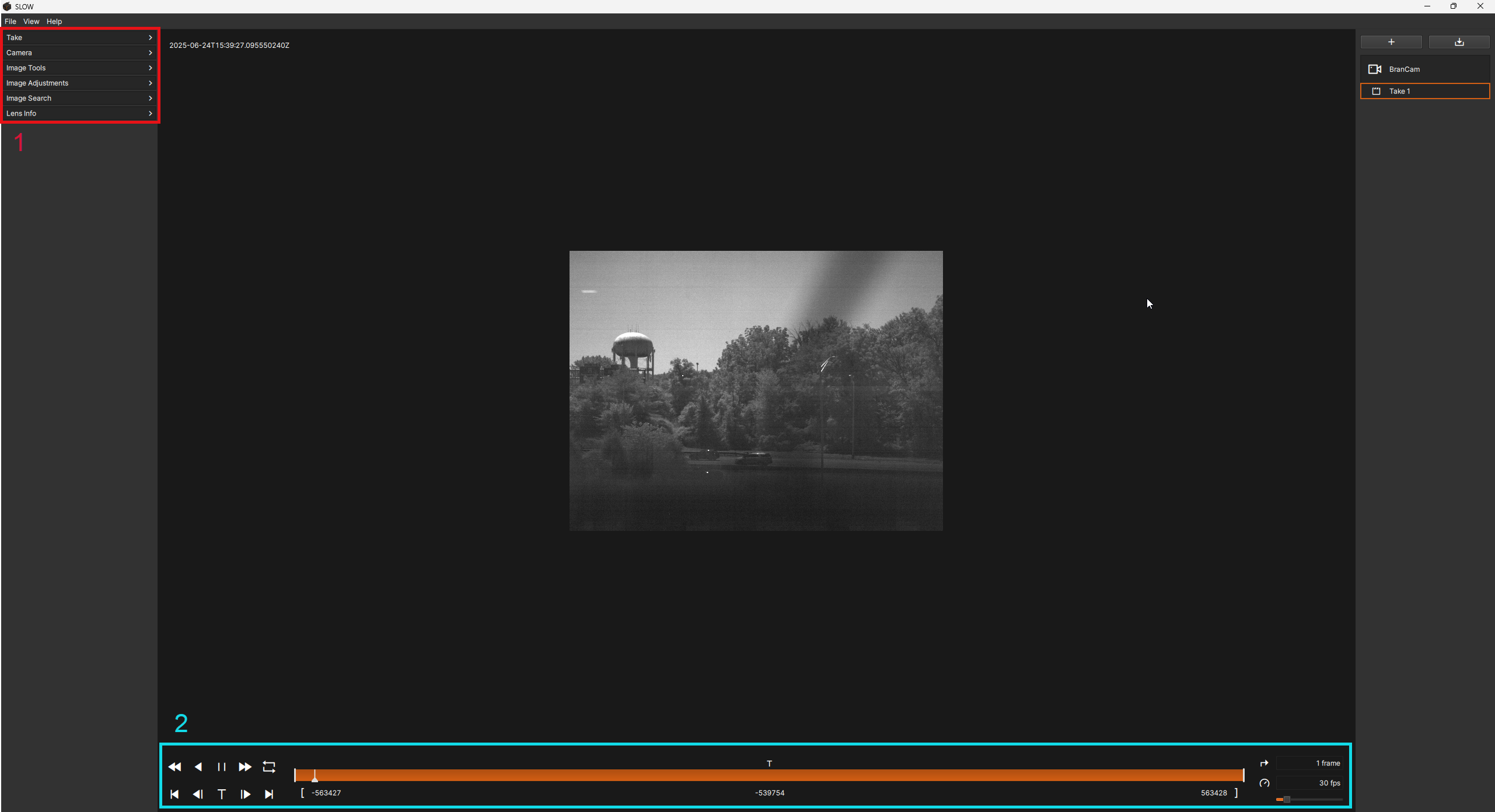
| # | Region | Description |
|---|---|---|
| 1 | Control Panes | Provides access to image adjustments, image search tools as well as acquisition and lens metadata. |
| 2 | Playback Controls | Provides essential control over the direction and speed of playback. |
Control Panes
Similar to the Camera Control Panes, the Playback Control Panes on the left side of the SLOW software also provide access to essential live image adjustments when viewing a Take, SSD Take, or SLOW File.
A small arrow at the top right of each pane allows it to be expanded or collapsed. Collapsing a pane does not disable its functionality, it simply hides its contents, allowing focus on the controls most relevant to the current workflow. The state of the pane (expanded or collapsed), however, is not unique to each object and will remain the same when switching between objects.
The control panes in view can be adjusted by clicking and dragging them up or down with the mouse or by hovering over them and using the scroll wheel.


| Control Pane | Description |
|---|---|
| Identifier | Lists metadata for the Take or SLOW File. Displays File Name, Resolution, Frame Rate, Exposure Time, Frame Sync Mode, and Black Reference Mode |
| Camera | Lists metadata for the camera that recorded the Take. Displays camera name, camera serial number, camera model, and firmware version |
| Image Tools | Controls image transformations and assistive filters |
| Image Adjustments | Controls image adjustments on raw images |
| Image Search | Controls automatic image search settings |
| Lens Info | Provides details about lens settings |